
TL;DR
The network security key is the password you type to join a secured Wi-Fi network. You can find it on your router’s label or in your device’s saved Wi-Fi settings. Choose WPA3 or WPA2 with AES, and use a long, random passphrase. If you see “The network security key isn’t correct,” retype it carefully, forget the network, and restart your router.
You tap a Wi-Fi name, and your device asks for a key you’ve never seen. What is the network security key? It’s the password that lets your device join a secured Wi-Fi network. Many people call it the Wi-Fi password or passphrase. It protects your network from strangers. You’ll usually find it on the router’s label or in your device’s saved Wi-Fi settings.
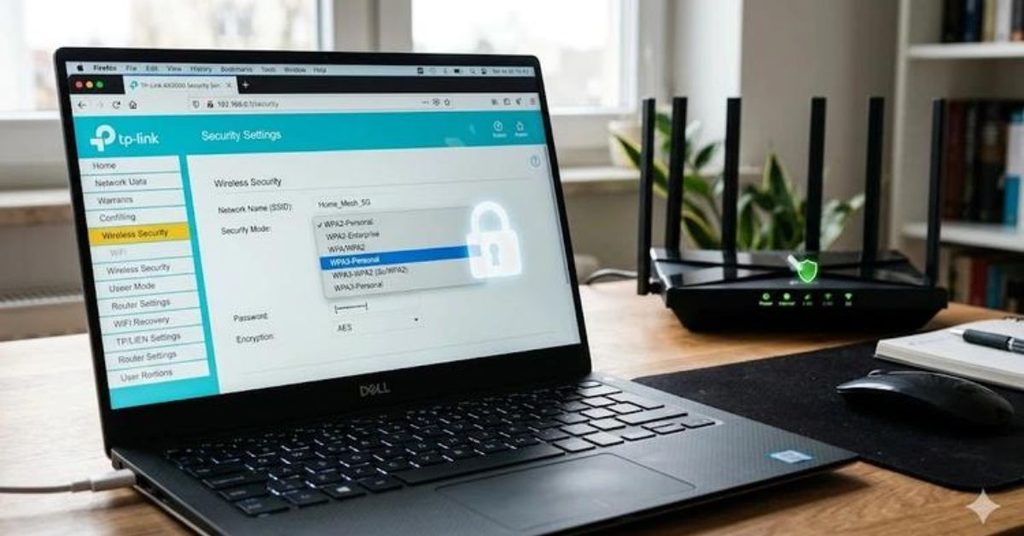
What Is the Network Security Key?
When joining a protected Wi-Fi network, you need a network security key to prove your identity. Your router checks the key before it lets a device in. It also scrambles data that travels between your device and the router, protecting it from tampering. That scrambling is called encryption.
Think of it like a house key. Without it, people can’t walk in. With it, the right people get in easily.
Is the network security key the same as the Wi-Fi password?
Yes, in most cases. Windows uses the term “network security key.” Phones and routers usually say “password” or “passphrase.” They all mean the same thing.
Don’t confuse it with other router settings. Here’s how they differ:
| Term | What it is | Example |
| Network name (SSID) | The name you see in the Wi-Fi list | “HomeNetwork” |
| Network security key | The password to join the Wi-Fi | A long passphrase |
| Security type | The protection method in use | WPA2 or WPA3 |
| Router admin password | The login for the router’s settings page | Set by you or the maker |
Why does Wi-Fi need a network security key?
A key does three jobs:
- It keeps strangers out. Without one, anyone nearby could join your network.
- It protects your data. Encryption makes your traffic hard to read for outsiders.
- It protects your devices. A stranger on your network can try to reach other devices on it.
What Are the Types of Network Security Keys?
The “type” really means the security standard your Wi-Fi uses. Each standard handles keys in its own way. Newer ones are stronger.
| Type | Introduced | Strength | Should you use it? |
| WEP | Late 1990s | Very weak | No. Attackers can break it quickly. |
| WPA (with TKIP) | 2003 | Weak | No. It’s outdated. |
| WPA2 (with AES) | 2004 | Strong | Yes, if WPA3 isn’t available |
| WPA3 | 2018 | Strongest | Yes, if your devices support it |
| Open (no key) | N/A | None | No, unless it’s a guest setup you understand |
What is the difference between Personal and Enterprise?
Most homes use Personal mode. Everyone shares one passphrase. Enterprise mode is for offices and schools. Each person logs in with their own username and password. That makes it easier to remove one person without changing everyone’s key.
Which type should you choose?
Pick WPA3 if all your devices support it. If older devices can’t connect, use WPA2 with AES. Some routers also offer a mixed WPA2/WPA3 mode. Avoid WEP, WPA, and open networks.
WPA3 helps in one important way. It defends better against attackers who try to guess your password again and again.
How Do You Find the Network Security Key?
Start with the easiest place, then work through your devices. Only look up keys for networks you own or have permission to use.
How do you find it on your router?
Check the sticker on the router. Many routers list the network name and a default key there. If you change the key, the sticker will no longer be accurate.
You can also log in to the router’s settings page. The sticker often lists the address, such as 192.168.1.1, plus a login. Look under the Wireless or Wi-Fi section. Menus vary by brand.
How do you find it on Windows?
Use this method if you’re connected to the network now:
- Open Control Panel, then Network and Sharing Center.
- Click your Wi-Fi name next to Connections.
- Click Wireless Properties.
- Open the Security tab.
- Check Show characters. The network security key appears.
You can also use the command line, even for networks you joined before:
- Open Command Prompt. You may need to run it as administrator.
- Type netsh wlan show profiles and press Enter to see saved networks.
- Type netsh wlan show profile name=”YourNetworkName” key=clear and press Enter.
- Look for Key Content under Security settings.
How do you find it on a Mac?
- Open Keychain Access.
- Search for your Wi-Fi network name.
- Double-click it, and check Show password.
- Enter your Mac’s admin password when asked.
How do you find it on an iPhone?
On iOS 16 and later:
- Open Settings, then tap Wi-Fi.
- Tap the (i) icon next to your network.
- Tap Password, and verify with Face ID, Touch ID, or your passcode.
How do you find it on Android?
The Wi-Fi setting can be found in Settings > Network & Internet (or Connections on Samsung). Tap your network, then choose Share. Verify yourself, and the password will show under the QR code. Menu names vary by phone.
What if you can’t find it?
Ask the person who set up the network. You can also check your internet provider’s app or account page. As a last resort, factory reset the router. That removes your custom settings, and the router goes back to the key on its sticker. Use that only if you’re ready to set everything up again.
How Do You Fix “The Network Security Key Isn’t Correct”?
Windows shows this message when the router rejects the key you typed. The cause is usually simple. Typos, Caps Lock, and similar-looking characters, like a zero and the letter O, are common. Other causes include a changed password, a mismatched security type, or a router or driver glitch.
Try these fixes in order:
- Retype the key carefully. Click the eye icon, if shown, to see what you typed. Check Caps Lock.
- Confirm the key is current. Check it on a device that’s already connected.
- Forget the network and reconnect. In Windows, open Settings, Network & internet, Wi-Fi, Manage known networks. Select the network and choose Forget. Then join again.
- Restart your router and device. Unplug the router for about 30 seconds.
- Turn Wi-Fi off and on. Airplane mode also works.
- Check the security type. If your router uses WPA3 and your device is older, switch the router to WPA2 or mixed mode.
- Update your Wi-Fi driver. Use Windows Update or the maker’s website.
- Run a Windows network reset. Open Settings, Network & internet, Advanced network settings, then Network reset. This removes saved Wi-Fi networks and VPN settings, so use it late.
- Reset the router. Do this only as a last step, since it erases your router settings.
What if other devices connect fine?
That points to a problem with your device, like a bad saved profile or an old driver. If no device can join, the router is likely the cause. Restart it first. Then check the key and security type in its settings.
What Are the Best Practices for Managing Network Security Keys?
Good habits keep your network safe without much work:
- Use WPA3 or WPA2 with AES. Avoid WEP and WPA.
- Choose a long, random passphrase. WPA2 passphrases can be 8 to 63 characters long. Aim for at least 12, and 16 or more is better. Length beats fancy symbols, so a few random words work well.
- Avoid personal details. Names, birthdays, and phone numbers are easy to guess.
- Change default settings. Replace the router’s default Wi-Fi key and its admin password.
- Turn off WPS. Wi-Fi Protected Setup has known weaknesses, especially the PIN method.
- Update router firmware. Updates fix security flaws.
- Use a guest network. Give visitors and smart home gadgets their own network.
- Share the key safely. Use a QR code or your guest network. Don’t post the key in public chats or photos of your router.
- Store it in a password manager. That way you won’t lose it.
- Change it when needed. Update the key if you suspect misuse, or if someone you no longer trust has it. Then reconnect your devices.
Conclusion
So, what is the network security key? It’s the password that lets devices join your Wi-Fi, and it also helps encrypt your traffic. You can find it on your router, in your device settings, or in your computer’s saved networks. If you see an error, retype it, forget the network, and restart your router.
Take two minutes today to check your own setup. Confirm you’re using WPA3 or WPA2 with AES, and make sure your passphrase is long and private. Then explore more guides at Techprixo, and share this article with someone who’s locked out of their Wi-Fi.
Disclaimer
This article is for informational purposes only and is not a substitute for professional cybersecurity advice.
FAQ
The network security key is the password you enter to join a secured Wi-Fi network. It’s also called the Wi-Fi password or passphrase. This proves you’re allowed on the network and helps scramble your data. Windows uses this label, while most phones simply say Password.
Check the sticker on your router first, since it often lists the default key. Windows users can open Wireless Properties and tick Show characters. iPhone and Android show the password in your Wi-Fi network details after you verify yourself. Mac users can use Keychain Access.
It means the router rejected the password you typed. The usual causes are a typo, Caps Lock, a changed password, or a security setting your device doesn’t support. Retype the key with Show characters on, forget the network and reconnect, then restart the router and your device.
Yes. WPA3 is the newer standard and offers stronger protection, including better defense against password guessing. However, older devices may not support it. If some of your devices can’t connect, use WPA2 with AES, or a WPA2/WPA3 mixed mode. Avoid WEP, WPA, and open networks.
WPA2 passphrases can be 8 to 63 characters long. Aim for at least 12, and 16 or more is better. Length matters more than fancy symbols, so a few random words work well. Avoid names, birthdays, and phone numbers, since they’re easy to guess.